Hi there! Here we are going to build a complete Understanding of SQL Server Database Files and Filegroups. This is another basic and one of the important topics to help you in your SQL DBA carrier. This is part of SQL Server DBA Tutorial: Beginners to Pro series.
What are SQL Server Database Files:
Every SQL Server database is made up of at least two operating system files: a data file and a log file.
- The data file stores data and database objects such as tables, indexes, stored procedures, and views.
- The log file records the information required to recover all transactions in the database.
Demo: Create database with Default settings and check the files
Create a database with default settings with the following basic T-SQL script.
CREATE Database Testdb
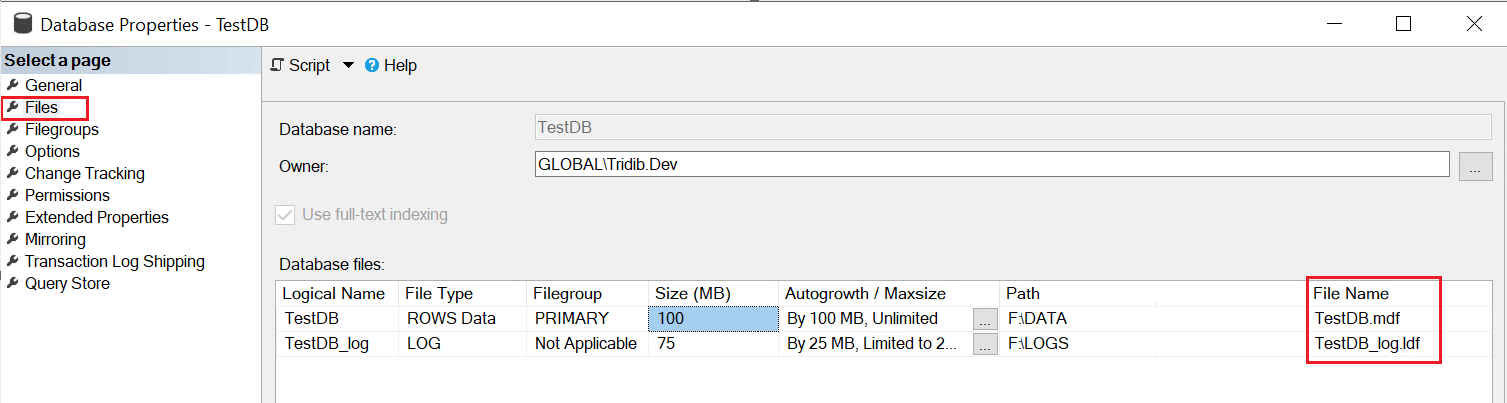
Now in SSMS Right Click on the Database > Properties > Click on Files
Types of SQL Server Database Files:
SQL Server Database have three main types of database files:
- Primary Data File (.mdf)
- Secondary Data File (.ndf)
- Transaction Log File (.ldf)
Primary Data File (.mdf):
- Contains startup information for the database.
- Stores system tables and metadata.
- It points to the other files in the database.
- Every database has only one primary data file.
- Microsoft recommends the file name extension for primary data files is .mdf.
Secondary Data File (.ndf)
- This is optional user-defined data file.
- SQL Database can have multiple secondary files.
- Data can spread across multiple disks by putting each file on a different disk drive. Improve performance via parallel I/O.
- Microsoft recommends file name extension for secondary data files is .ndf.
Transaction Log File (.ldf):
- Stores all transactions and changes.
- Essential for recovery of the database.
- Each database has at least one log file.
- Recommended file name extension for transaction logs is .ldf.
Logical and Physical File Name:
There are two types of File Names if you have observed in the above screen shot. The first column says Logical Name and the last column labeled as File Name with extensions .mdf and .ldf are Physical File Name.
Logical File Name:
- The file name which is defined when the database is created.
- The name used to refer to the physical file in all Transact-SQL statements (BACKUP, RESTORE, CREATE DATABASE, ALTER DATABASE, etc.)
- The logical file complies with the rules of SQL Server identifiers.
- Logical file name must be unique among all logical file names in the database.
e.g. In the CREATE Database T-SQL, Testdb is the logical file Name
CREATE Database Testdb --Testdb is the Logical File Name of the Database
Physical File Name:
- Physical file name is the actual name of the file stored on disk.
- Represents the real
.mdf,.ndf, or.ldffile. - The physical file name complies with the rules of Operation System identifiers.
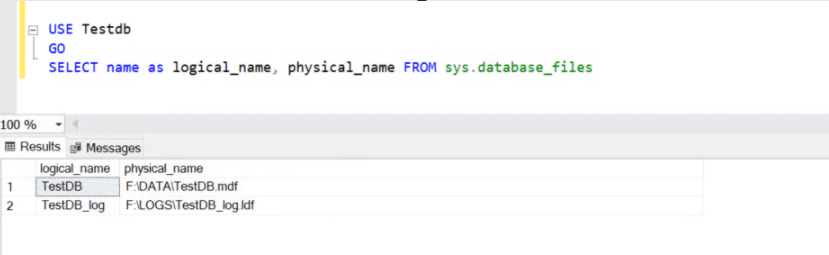
Example: Let’s display the logical and physical file names for the database ”Testdb” created above
 USE Testdb
 GO
 SELECT name as logical_name, physical_name FROM sys.database_files
Result Set showing logical and physical file names:
What Is Filegroup:
A Filegroup is a logical container of the database files. It allows you to control how and where database objects (like tables and indexes) are physically stored on disk.
- Helps in data allocation and administration
- Enables performance optimization by spreading data across disks
Types of Filegroups:
- Primary Filegroup
- User-defined
- Filestream
- Memory Optimized Data
Primary Filegroup:
- Primary filegroup contains the primary data file (.mdf).
- It holds the system objects and tables.
- It is the default filegroup.
Bear in mind that you can change the default filegroup using T-SQL so that new objects are created in the user defined filegroup. However system objects and tables remains with the Primary Filegroup.
Example: Let’s check the filegroup information for the database “Testdb” created above.
Right Click on the Database > Properties > Click on Files
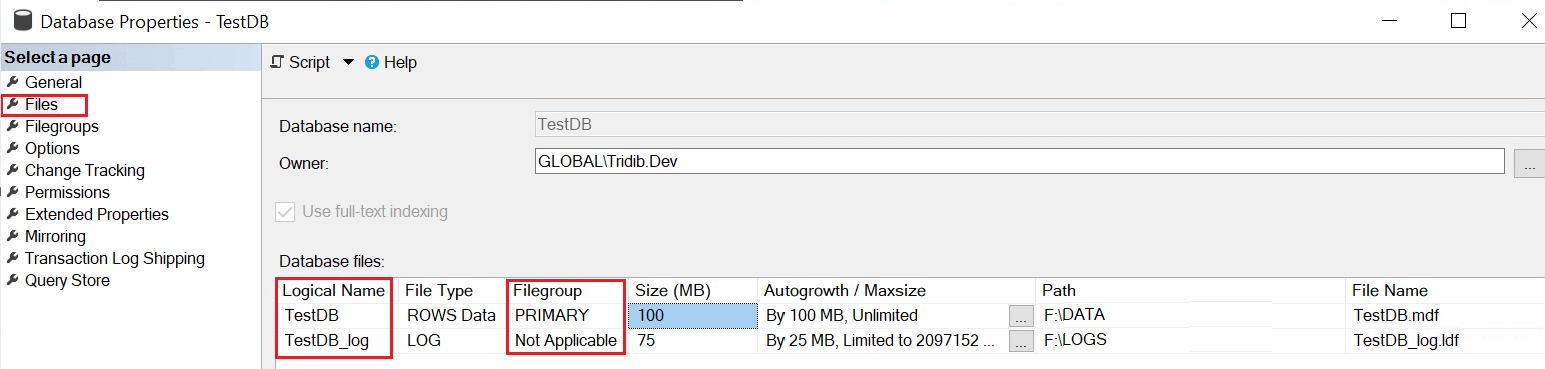
As can be seen above, the default Filegroup for TestDB data file is showing as PRIMARY. Point often overlooked is the Filegroup for TestDB_log file is Not Applicable.
Hence, keep in mind that SQL Server does not allow you to place transaction log files in any filegroup
User-defined Filegroup:
- As the name suggests, DBAs create user-defined filegroups.
- Used to separate large tables, indexes, or archive data.
Filestream Filegroup:
- Stores unstructured data (e.g., documents, images).
Memory Optimized Data:
- Used for In-Memory OLTP tables.
- To create memory-optimized tables, you must first create a memory-optimized filegroup.
Demo: The following T-SQL script shows how to create primary File on PRIMARY Filegroups and Secondary Files on User-Defined Filegroup
T-SQL Script
USE master;
GO

CREATE DATABASE FileGroupDemo
ON PRIMARY -- Primary Filegroup
(
    NAME = N'FileGroupDemo_Primary', -- Logical Filename of Primary File
    FILENAME = N'C:\SQLData\FileGroupDemo_Primary.mdf',  -- Primary Physical Filename
    SIZE = 100MB,
    MAXSIZE = 200MB,
    FILEGROWTH = 10MB
),
FILEGROUP FG_Sales  --User-Defined Filegroup with name FG_Sales
(
    NAME = N'FileGroupDemo_Sales_01',  --Logical Filename of Secondary File
    FILENAME = N'C:\SQLData\FileGroupDemo_Sales_01.ndf',  --Physical filename of Secondary File
    SIZE = 20MB,
    MAXSIZE = 200MB,
    FILEGROWTH = 10MB
),
FILEGROUP FG_Archive  --User-Defined Filegroup with name FG_Archive
(
    NAME = N'FileGroupDemo_Archive_01', --Logical Filename of Secondary File
    FILENAME = N'C:\SQLData\FileGroupDemo_Archive_01.ndf',  --Physical filename of Secondary File
    SIZE = 20MB,
    MAXSIZE = 200MB,
    FILEGROWTH = 10MB
)
LOG ON
(
    NAME = N'FileGroupDemo_Log', --Logical filename of Transaction Log File
    FILENAME = N'C:\SQLData\FileGroupDemo_Log.ldf', --Physical filename of Transaction Log File
    SIZE = 10MB,
    MAXSIZE = 100MB,
    FILEGROWTH = 5MB
);
Now let’s see the database properties:
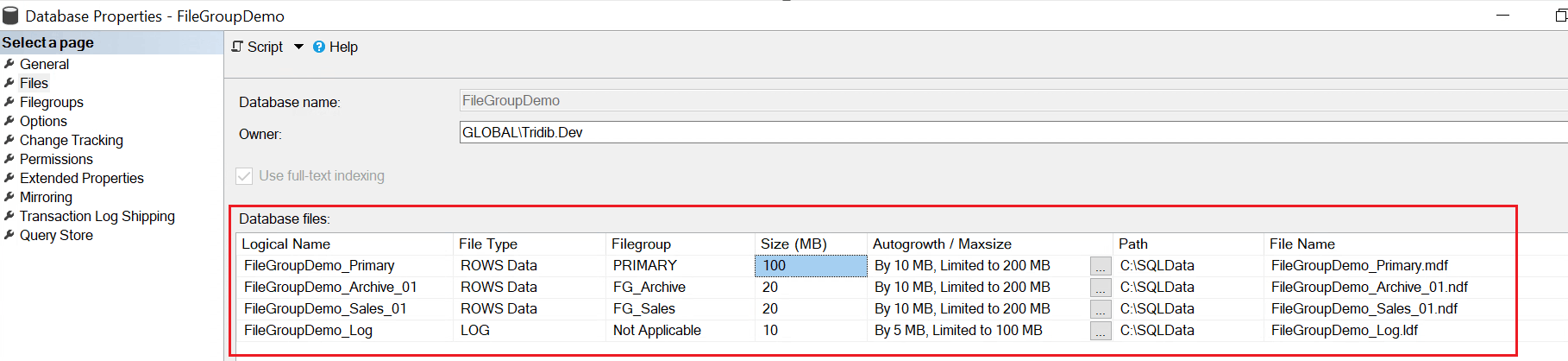
Hope you got a fair idea about SQL Server File and Filegroups. We’ll discuss about Filestream and Memory Optimized Filegroup in next article. Please feel free to leave a comment.
You may also like to go through:
Understanding SQL Server Versions and Editions