Browsing: SQL Server Concept

Difference Between Blocking and Deadlock

Hi There! if you are working with SQL Server or any RDBMS (Relational Database Management System), understanding difference between blocking and deadlock is very important.

Concurrency is inevitable as multiple users and processes interact with the same data simultaneously and database engine uses locks to maintain the integrity. Now the Locking has its side effects known as blocking and deadlocks. While they are often confused as similar, they are actually different.

What is Blocking?

Blocking occurs when one session/SPID holds a lock on a specific resource and a second SPID attempts to acquire a conflicting lock type on the same resource.

When the owning session releases the lock, the second connection can acquire its own lock on the resource and continue processing.

it’s normal behavior in SQL Server. It may happen many times without impacting the performance if the sessions does not lock a resource for longer period.

In some scenarios this can cause performance issues if locks are not released for longer period.

Example:

Session 1                                                                            Session 2
———————                                                              —————————
BEGIN TRANSACTION                                                     BEGIN TRANSACTION
UPDATE Employees                                                           SELECT * FROM Employees
SET Salary = 5000                                                               WHERE ID = 1
WHERE ID = 1

  • Session 1 updates a row → gets an exclusive lock (X)
  • Session 2 tries to read same row → needs shared lock (S)
  • Shared lock is incompatible with exclusive lock → blocking occurs

Let’s make it clear with an interesting real world example.

Real-World Blocking Example (Airport Restroom):

Difference Between Blocking and Deadlock

  • One person is inside the restroom (holding the “lock”)
  • Others are waiting outside in a queue (blocked sessions)
  • Once the person exits, the next person can go in (lock released → next process continues)

Just like in SQL Server:

  • The resource = restroom
  • Lock holder = person inside
  • Blocked sessions = people waiting

This is normal and all people waiting (blocked sessions) for their turn waits. But if the person inside (Lock holder) takes longer to leave the restroom (the resource) can cause discomfort (performance issue) for the people waiting outside.

What is Deadlock?

Deadlock occurs when two or more processes/transactions permanently waits for each other because each transaction has a lock on a resource that the other transaction is trying to lock.

The SQL Engine detects this situation through lock manager, that the contention will never resolve on its own. Hence to break the deadlock, it terminates one of the processes which is of lower cost to rollback, allowing the other to complete. The terminated process is known as the deadlock victim.

Example:

Session 1                                                                        Session 2
———————                                                        ————————-
BEGIN TRANSACTION                                            BEGIN TRANSACTION

UPDATE Employees                                                    UPDATE Departments
SET Salary = 5000                                                       SET Budget = 100000
WHERE ID = 1                                                              WHERE DeptID = 10

UPDATE Departments                                               UPDATE Employees
SET Budget = 200000                                                SET Salary = 6000
WHERE DeptID = 10                                                  WHERE ID = 1

[Session 1]

│ holds lock on Employees(1)

[Resource: Employees(1)]

│ needed by Session 2

[Session 2]

│ holds lock on Departments(10)

[Resource: Departments(10)]

│ needed by Session 1

(Transactions permanently waits for each other causing Deadlock)

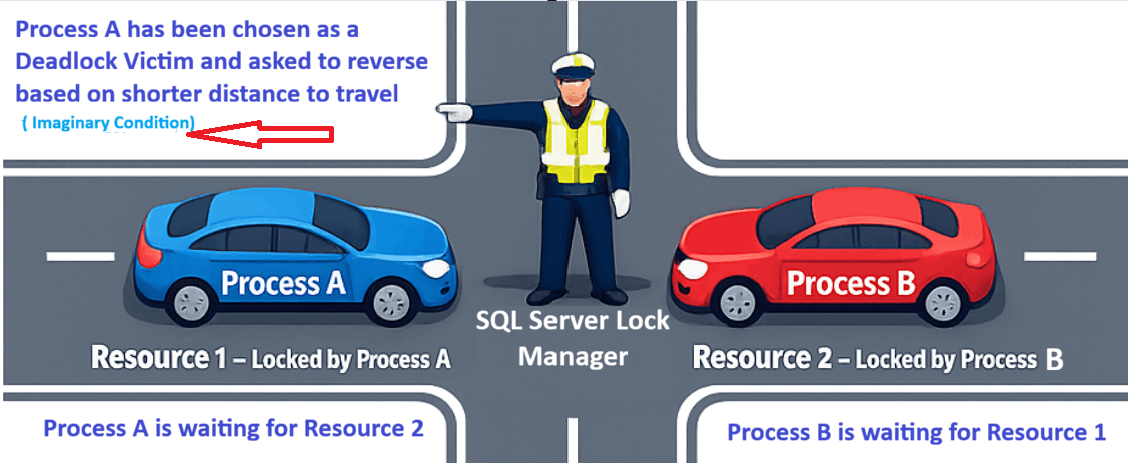
Real-World Deadlock Example (Traffic Road):
Difference Between Blocking and Deadlock

  • Blue Car (Process A) holding the lock on the road (Resource 1) which Red Car (Process B) wants
  • Red Car (Process B) holding the lock on the road (Resource 2) which Blue Car (Process A) wants
  • Both the Cars wants the other car to backout without releasing their own locks creating a Deadlock situation
  • The traffic police (SQL Server Lock Manager) intervenes and asks one of the Cars (in this example Blue one) to reverse because let’s imagine he sees it has less distance to travel to reverse and give the path to Red Car. Hence the Blue Car (Process A) becomes the Deadlock Victim and the deadlock resolves.

Now since you have got a fair idea on blocking and deadlock, let’s create a demo in SQL Server.

Blocking Demo:

Create a database and table. Insert two records.

CREATE Database SQLGeeksPro;
GO
USE SQLGeeksPro;
GO

CREATE TABLE dbo.Employee
(
    EmployeeID INT PRIMARY KEY,
    EmployeeName VARCHAR(100),
    Salary INT
);

INSERT INTO dbo.Employee VALUES
(1, 'John', 50000),
(2, 'Mary', 60000);
GO
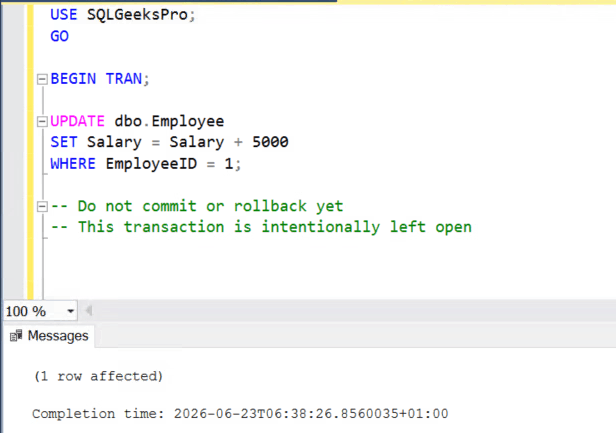
Session 1: Start a transaction holding the lock on Employee Table

Open Query Window 1 and run:

USE SQLGeeksPro;
GO

BEGIN TRAN;

UPDATE dbo.Employee
SET Salary = Salary + 5000
WHERE EmployeeID = 1;

-- Do not commit or rollback yet
-- This transaction is intentionally left open
Difference Between Blocking and Deadlock

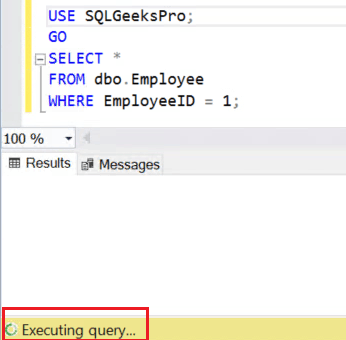
Session 2: Try to Read the Same Row

Open another window and run the below query:

USE SQLGeeksPro;
GO

SELECT *
FROM dbo.Employee
WHERE EmployeeID = 1;
Difference between blocking and deadlock

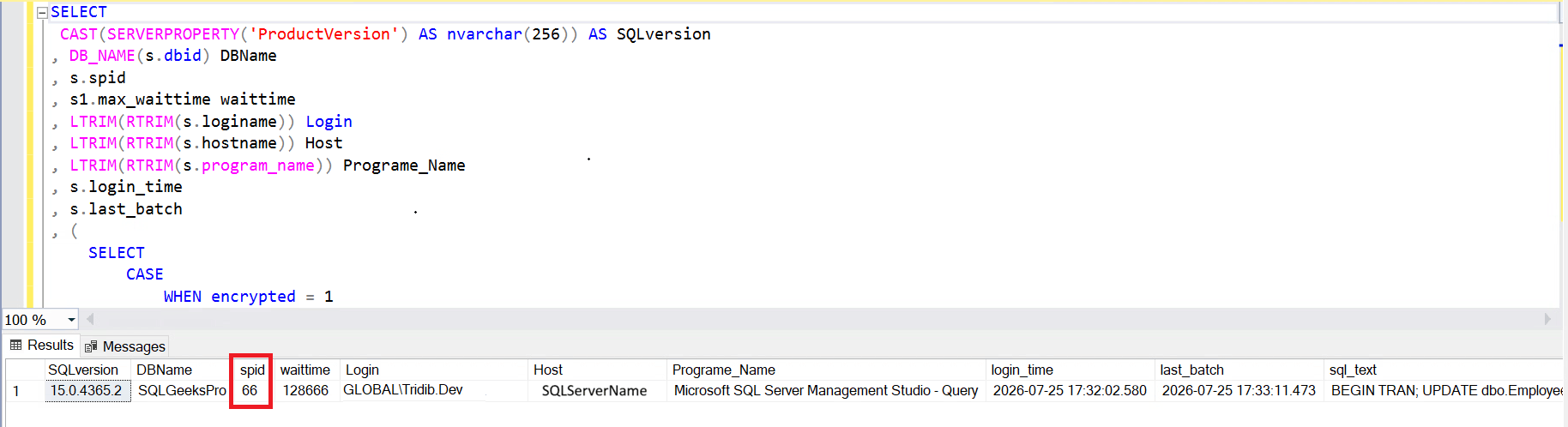
As you can see the query execution continues and never ends for the SELECT query.  Now let’s check the blocking details using the query Root Blocker Detection Query For SQL Server

Result Set:
Difference Between Blocking and Deadlock

You can see in the screen shot, spid is the session which is the root blocker. To clear the blocking you need to either commit or rollback the session1 (in this example spid 66).

Deadlock Demo:
Session 1: Run the Script in Session 1
USE SQLGeeksPro;
GO

BEGIN TRANSACTION;

UPDATE dbo.Employee
SET Salary = Salary + 1000
WHERE EmployeeID = 1;

PRINT 'Session 1 updated EmployeeID 1';

WAITFOR DELAY '00:00:10';

UPDATE dbo.Employee
SET Salary = Salary + 1000
WHERE EmployeeID = 2;

COMMIT TRANSACTION;

PRINT 'Session 1 completed successfully';

GO

Session 1 first places an exclusive lock on the row for EmployeeID = 1.
It then waits for ten seconds before attempting to update EmployeeID = 2

Session 2: Run the Script in Session 2
USE SQLGeeksPro;
GO

BEGIN TRANSACTION;

UPDATE dbo.Employee
SET Salary = Salary + 2000
WHERE EmployeeID = 2;

PRINT 'Session 2 updated EmployeeID 2';

WAITFOR DELAY '00:00:10';

UPDATE dbo.Employee
SET Salary = Salary + 2000
WHERE EmployeeID = 1;

COMMIT TRANSACTION;

PRINT 'Session 2 completed successfully';

GO

Session 2 first places an exclusive lock on the row for EmployeeID = 2.
It then waits for ten seconds before attempting to update EmployeeID = 1.

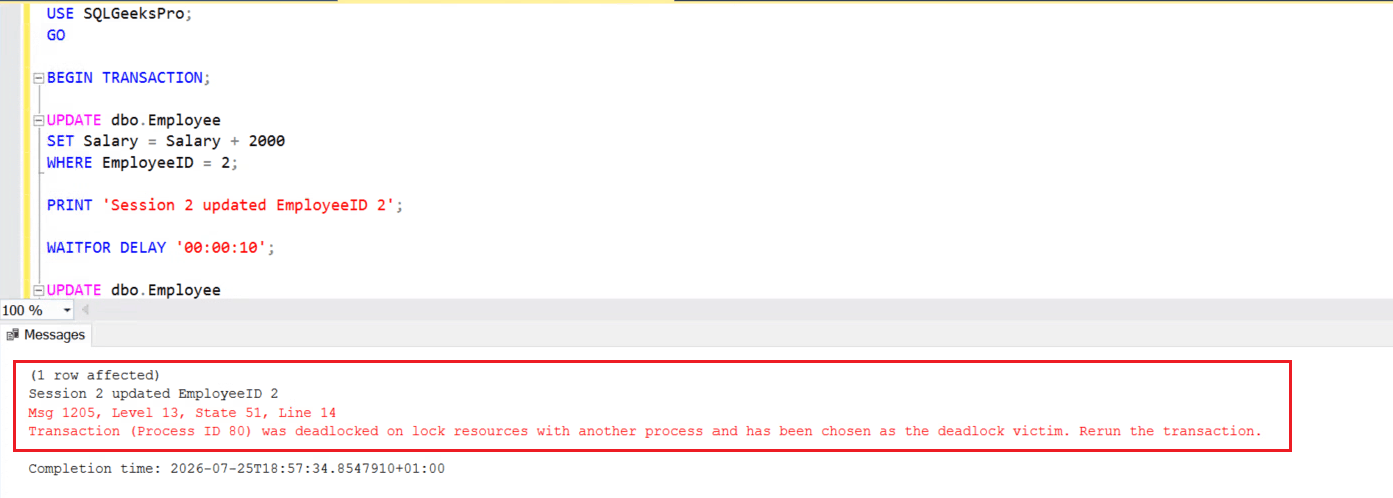
One of the sessions should receive an error similar to the following:
Difference Between Blocking and Deadlock
Not to mention, The exact process ID, state number, and resource information may vary.

The transaction selected as the deadlock victim is rolled back automatically. The successful transaction remains committed.

Hope I am able to clarify the Difference Between Blocking and Deadlock. Please leave your comments below.

{ Add a Comment }

SQL Server TCP and UDP Ports Explained

We all know that that Microsoft SQL Server uses many different ports to access various components of the product. In this article we are going to discuss about TCP and UDP ports.

To begin with, Ports are nothing but communication channel to manage system messaging among several different applications.

TCP and UDP Ports:

TCP stands for Transmission Control Protocol. The computers (Servers) connected to the Internet use TCP/IP to communicate with each other. In other words TCP/IP is a connection-based protocol. I.e. The sender sends numbered packets across the wire and the receiver checks and makes sure it got the correct packet.

Hence TCP/IP protocol is more safe and reliable. However it puts a higher load on the computer as it has to monitor the connection and the data going across it.

UDP stands for User Datagram Protocol. UDP protocol prefers speed over reliability. That is to say UDP does not connect directly to the receiving computer like TCP does, but rather sends the data out and relies on the devices in between the sending computer and the receiving computer to get the data where it is supposed to go properly.

You can think of the postal dept. as a practical  example. The sender place mail in the mailbox and hope the Postal Service will deliver it to the proper destination address. Most of the time it works but sometimes it fails to deliver.

What are the  SQL Server TCP and UDP ports?

The default instance of the SQL Server Database Engine listens on TCP port 1433. The named instances uses dynamic port. When you are connecting to a named instance through a firewall, configure the Database Engine to listen on a specific port and open that particular port in firewall.

1433 port is also the official Internet Assigned Number Authority (IANA) socket number for SQL Server.

The SQL Server Browser service listens on UDP port 1434 for incoming connections for named instance. The service then responds to the client with the TCP port number for the requested named instance.

Point often overlooked is TCP port 1434 (Yes, you read that correct) is the default SQL port for the Dedicated Admin Connection.

TCP port 2383 is the default port for SQL Server Analysis Services.

Refer the Microsoft link All SQL Server Ports for more details.


{ Add a Comment }

SSRS Encryption Key Backup Information

Today I am going to discuss about an uncommon requirement and that is to find out SSRS Encryption Key backup information. In other words if there is any backup taken for the key and if yes then what is the location and backup date.

Now the question is very legitimate as they wanted to know if the reports can be restored in case situation demands. Not being a BI expert started my research from scratch.

Tried to query the “Keys” table in ReportServer database:

Image showing the keys table outputAs you can see no information about location of keys or at least last backup information.


A wild guess to check “backup_devices” view but no luck as expected:

Image showing output of backup_device view
Could not find any information in registry keys as well.
As per discussion with my colleague I installed SSRS on my personal laptop and then started a Process Monitor trace right before backing up the encryption key. During the process, a RSA machine key is created in C:\Users\ReportServer\AppData\Roaming\Microsoft\Crypto\RSA\.

This was like the light at the end of the tunnel and decided to dig further to discover something which would make me feel like a champion 😉

The below screen shot shows the generated machine key and path:

Image showing the machine key path

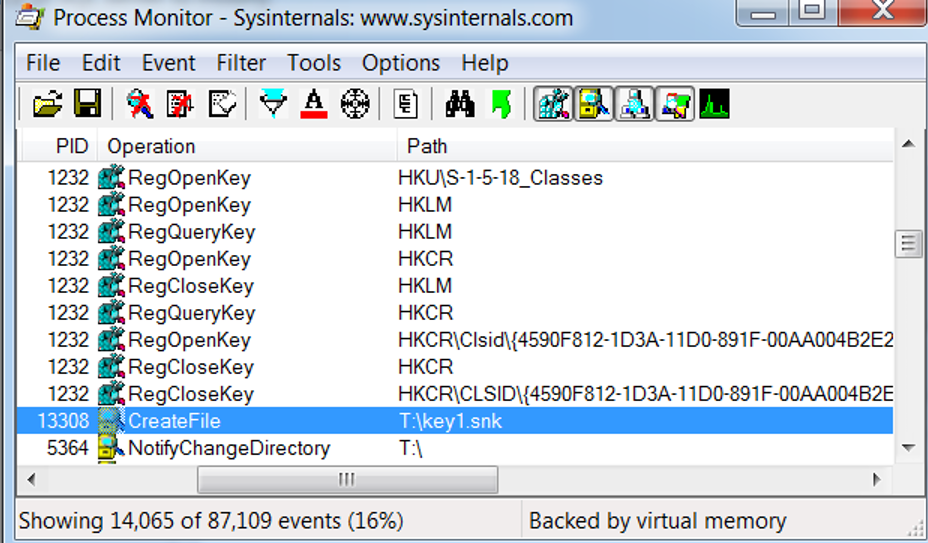
Initiated Encryption Key backup and checked in the process monitor:

Image showing the key backup path in process monitorI could see that the path showing the key backup as shown in the above screen shot.
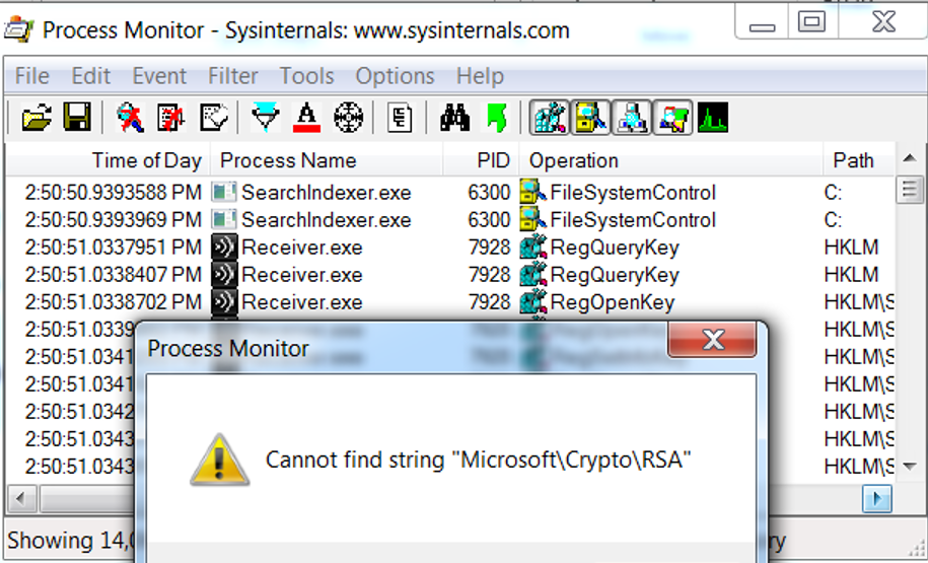
Next tried to search if any information regarding the machine key has been logged:

That is searching for the path C:\Users\ReportServer\AppData\Roaming\Microsoft\Crypto\RSA\
Image of process monitor which does not have the Machine key creation information This “Cannot find string” message shattered my hope 🙁
To understand how the machine key got generated, I uninstalled SSRS and checked the same path and the key was still lying there. Did a reboot of the system but it was still there.
I manually deleted the key, reinstalled and configured SSRS and the key got created. So the machine key gets generated while configuring SSRS.
So my assumption:

Machine key gets generated while taking SSRS Encryption Key Backup was wrong.

Conclusion:

I have checked with many experts in different forums and the most fruitful one was https://www.sqlservercentral.com.
What we can conclude from all these is as of now SQL Server does not record the information of SSRS encryption key backup path. It make sense because the .SNK file could be moved to another location manually.
But I expect Microsoft to at least record the information about the successful backup just the way they record database backup information.

Work Around:

The only work around is to have a company policy of some sort on where to backup these keys. Like you may want to suggest to have a policy/documentation to do the backup every x months on x path.
Or use default location for the backup of the instance there are some things you could do using the registry.
And then use PowerShell to find the LastWriteTime of the .SNK file.

Here I have explained every way I tried and failed to find the required information. Sometimes it is important to know what all ways does not work so that you can think in other direction.
Well if you find the solution please let me know and that is why I request you to share this with your friends/network using the below social share icons.

You may also like to know about:
Myth around Remote Query Timeout Option
Delete Tempdb data file without restarting SQL Server
Fact about Dedicated Administrator Connection (DAC)

{ 1 Comment }

Facts about Dedicated Administrator Connection (DAC)

Have you ever thought how Dedicated Administrator Connection (DAC) allow you to connect to SQL Server even when it cannot accept standard connection requests?
DAC is a special type of diagnostic connection, introduced by Microsoft as a new feature in SQL Server 2005.
SQL Server reserves a minimum amount of memory and a private scheduler using which it allows you to connect in situations when you need it.
You need to use a login which is a member of the SQL Server sysadmin role to use DAC and for obvious reasons only one such session is allowed at any point of time.

By default DAC is enabled locally except in SQL Express edition. That means if you are able to RDP to the server and want to use DAC to connect to the local SQL Instance, you will be able to do so even when DAC is not enabled explicitly.
Go ahead and watch this video showing what I am talking about:

In SQL Express you need to add “-T7806” to the startup parameters and restart SQL Services. Also SQL Browser Service should be running.

Then why Microsoft has provided the option to enable DAC? In situations OS can be completely exhausted of resources to handle any further user connections which prevents using DAC locally.
That is why you have the configuration settings “remote admin connections” to allow DAC from a remote machine.

There are two ways to enable DAC:
  1. Using Query
  2. GUI (Management Studio)

1. Using Query to set the configuration  settings:

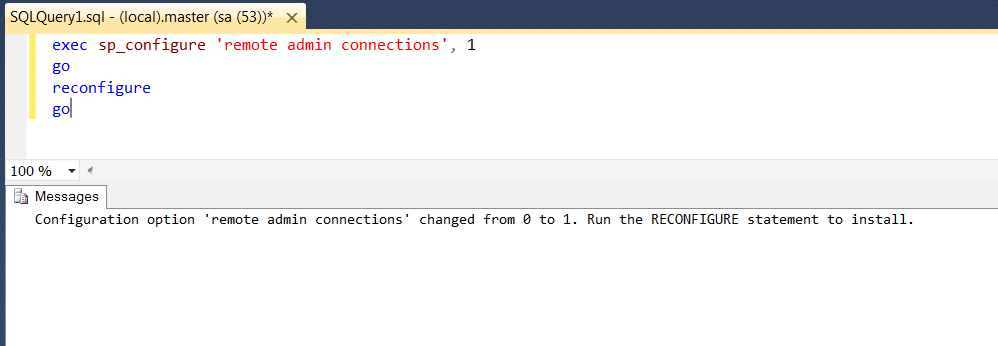
EXEC sp_configure 'remote admin connections', 1
GO
RECONFIGURE
GO

The message says “Run the RECONFIGURE statement to install”. This is little misleading as we have run that already. No need to run it again.

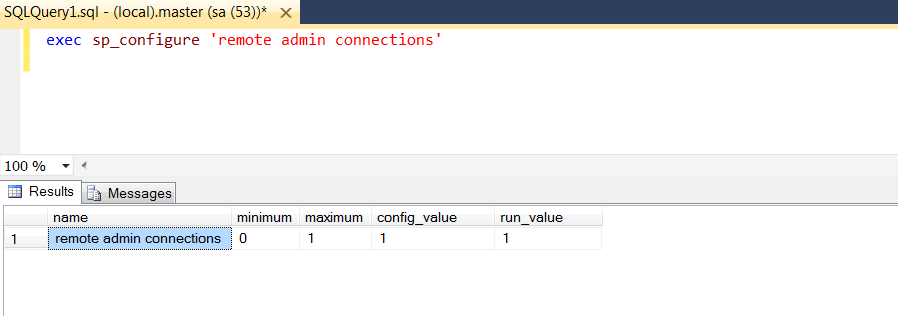
You can verify by executing the following query:

EXEC sp_configure 'remote admin connections'

As you can see in the above screen shot, both config_value and run_value has been set to 1. Otherwise run_value would have been ‘0’.

2. Using Management Studio:

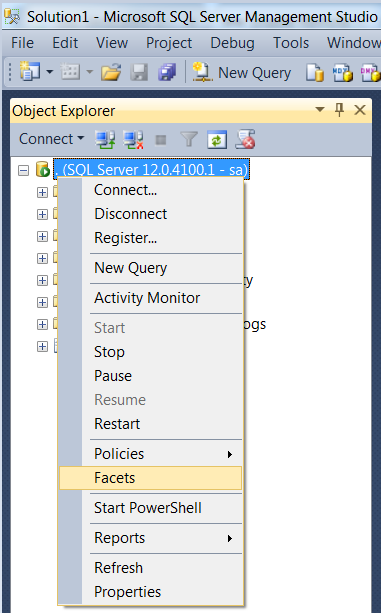
Right Click on SQL Server Instance > Facets as shown below.

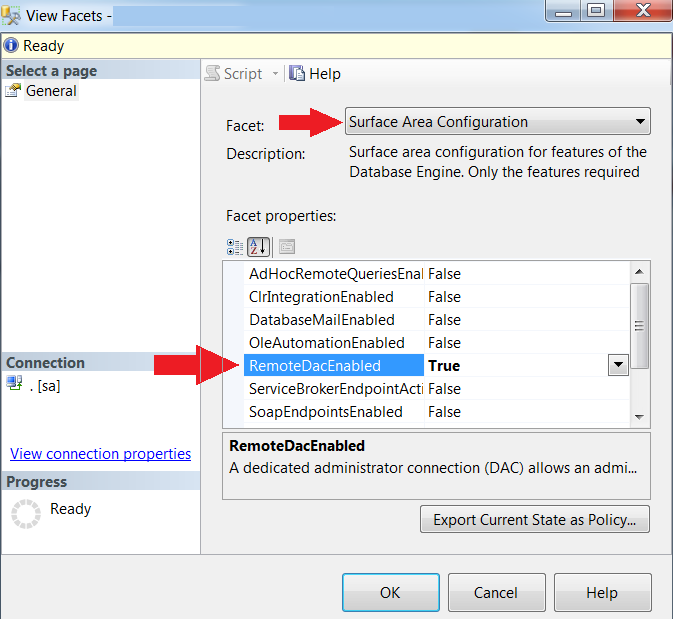
Choose Surface Area Configuration and make “RemoteDacEnabled” to True.

Now your SQL Instance is ready to allow DAC from remote machine.

There are two ways you can connect to SQL Instance using DAC:
    1. Command Prompt
    2. GUI (SQL Server Management Studio)

1. Command prompt:

Commands to connect using DAC:

a. To use SQL Authentication
sqlcmd -S [ServerName] -U [ltloginname] -P [Password] –A

b. To use Windows Authentication which will use the login id you are connected with:
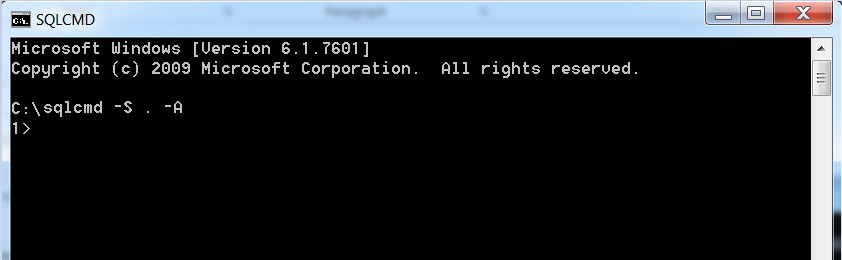
sqlcmd –S [ServerName] -A

Examples:

To connect to default SQL instance using windows authentication:
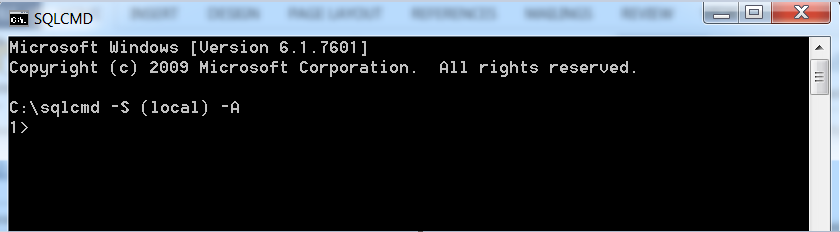
sqlcmd -S (local) –A

Or you can just use a (.) dot:

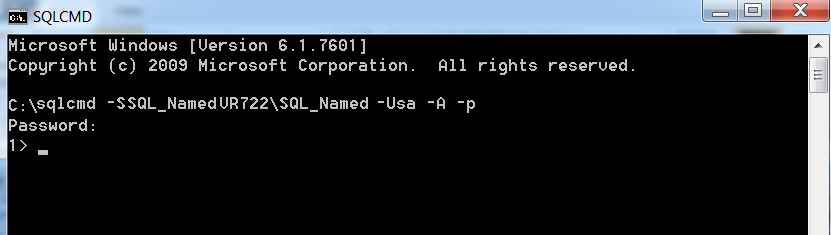
To connect named instance using SQL Authentication:

Note: In the above example the last letter is in lower case (-p), to prompt for password. If you want to mention the password in the command line itself then if is upper case (-P).

2. GUI (SQL Server Management Studio):

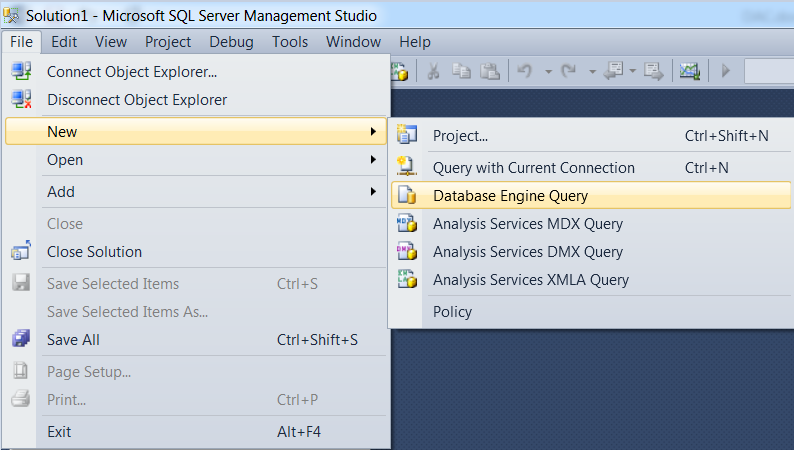
Go to File > New > Database Engine Query as shown below

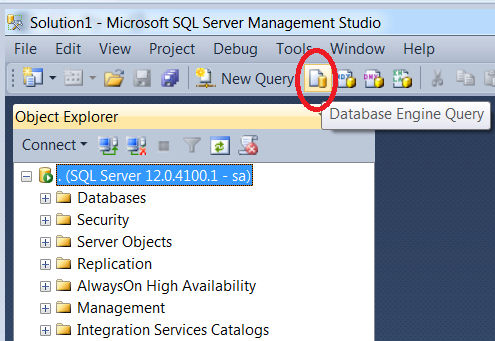
Alternatively you can click on the icon as shown below:

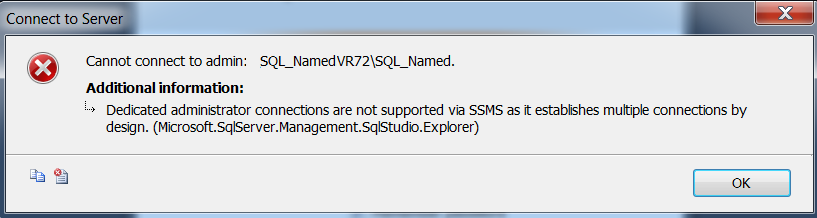
This is important to use Database Engine Query, otherwise you will get error as explained later in this article.

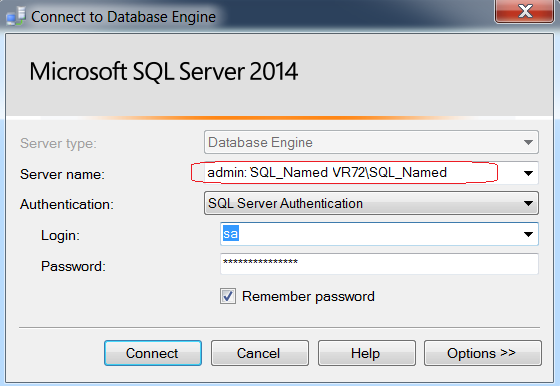
Type Admin:SQLInstanceName for the Server Name field name as shown below:

You can use either SQL Authentication or Windows Authentication.

If you do not pay attention to use “Database Engine Query” you will get the below error message:

In this article you have learned what DAC is and how it allows the special connection, different ways to enable DAC and different ways to connect.

I would love to hear from you if you have any questions and yes I hope you have gone through the topic of Myth around Remote Query Timeout Option

{ Add a Comment }

Remote Query Timeout Option – Common SQL Server Misconception

I have seen whenever customer complains about Query Time Out issue, there is a tendency to play around with this settings. This does not work the way you might think it does.

I would like to quote from TechNet:

https://technet.microsoft.com/en-us/library/ms177457(v=sql.105).aspx

Use the remote query timeout option to specify how long, in seconds, a remote operation can take before Microsoft SQL Server times out. The default is 600, which allows a 10-minute wait. This value applies to an outgoing connection initiated by the Database Engine as a remote query. This value has no effect on queries received by the Database Engine.

It clearly says, this applies to only outgoing connection and does not have any effect on incoming queries. The misunderstood part here is, what is outgoing and what is incoming query for SQL Server. This should get clarified once you read through this article.

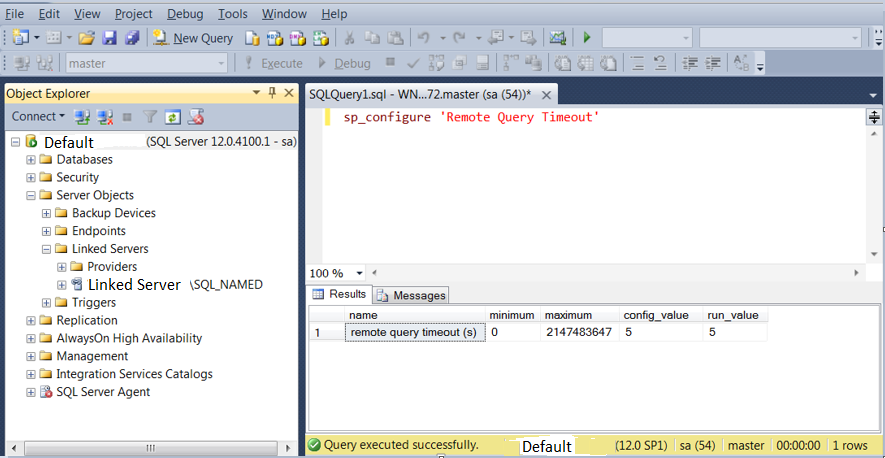
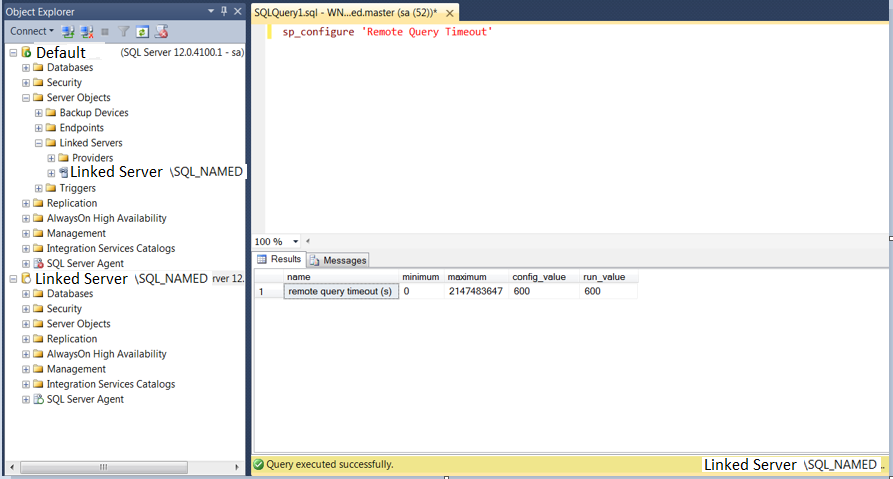
Here is my LAB setup for the Demo:

As you can see in the above screen shot, I have set the remote query timeout setting for the default instance to 5 sec(s).

You can execute the below query to set ‘Remote Query Timeout’ settings:

sp_configure 'Remote Query Timeout', 5
GO
RECONFIGURE
GO

Kept the default settings for the Linked Server SQL Instance (SQL_Named). i.e. 600 Sec(s)

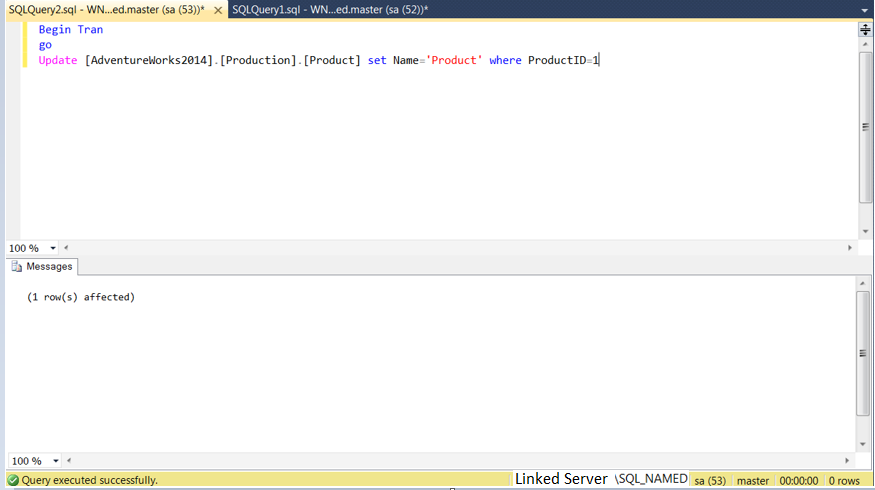
Now if I run a remote query to linked server that would be an outgoing query for the default instance and incoming for Linked Server.

In Linked server I am keeping an open transaction so that the lock on the table [AdventureWorks2014].[Production].[Product] does not get released.

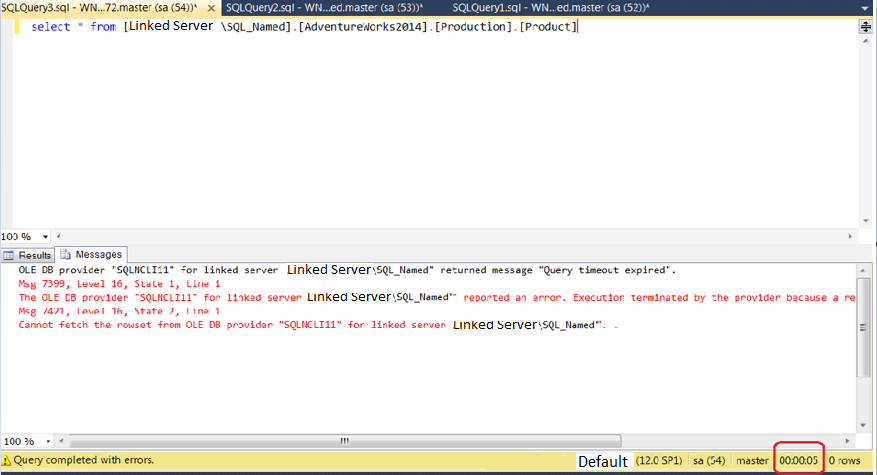
Initiate a remote query from the default instance (Outgoing Query).

If you can see that the query got timed out exactly after 5 sec(s). So, it proves that the remote query time out settings applies for remote query (i.e. for outgoing query).

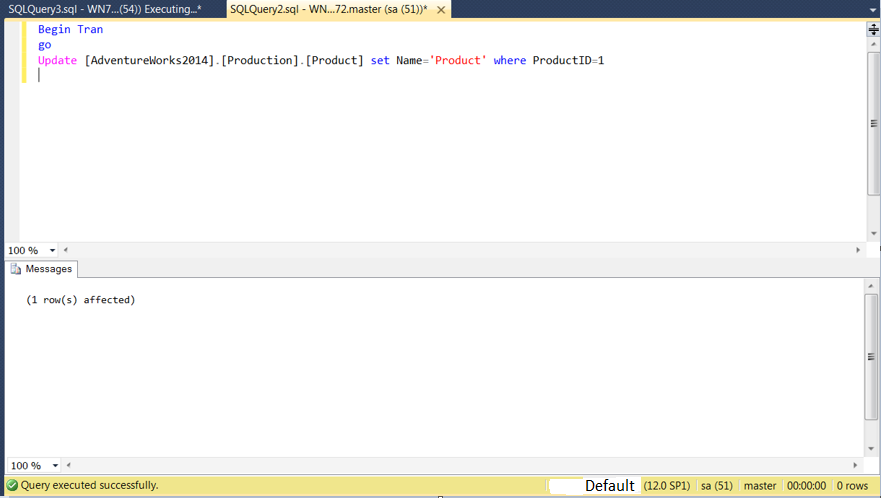
Now lets see how it works for incoming query. Keep and open transaction on the same table. This time executing it in the default instance.

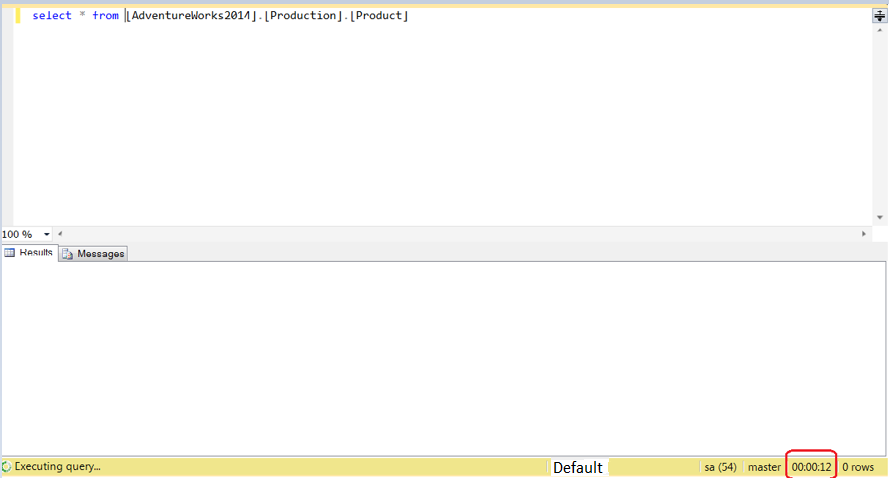
Open a different session for the default instance and run select on the same table. Both the queries are incoming for the default instance.

This time query is still waiting even though it crossed 12 sec(s) without getting timed out. This was an incoming query for the database engine of default instance and hence Remote Query Timeout Settings (which is set to 5 sec(s)) did not apply.

I hope this clarifies how exactly “Remote Query Timeout” option works.

More over if you like video training check the demo here:


You may also like to spend couple of minutes to check the below articles:

how to delete tempdb data file without restarting SQL Server.
SQL Database Restore using NetBackup
SSRS Encryption Key Backup Information
User Defined Profiler Template Location
Remove or delete Tempdb data file without restarting SQL Server
Fact about Dedicated Administrator Connection (DAC)

{ 5 Comments }