The Requirement was to provide a report to list all users with db_owner role. No big deal right? But the fun part was there were many servers running SQL 2000 version. Of course first thing first, search in the internet. Got few but not quite which I was looking for.
So ultimately I wrote the below query to provide the required details in SQL 2000. I have kept the option open to list not only for db_owner but also for any other database role.
You can tweak it as per your requirements.
SELECT p.name AS UserName,
      CASE WHEN p.isntgroup =1 AND p.isntuser=0 THEN 'Windows Group'
           WHEN p.isntgroup =0 AND p.isntuser=1 THEN 'Windows Login'
           WHEN p.issqlrole=1 THEN 'Database Role'
      ELSE 'SQL Login' END AS 'Login Type',
      USER_NAME(roles.groupuid) AS 'AssociatedRole'
      FROM sysmembers roles
           JOIN sysusers p ON roles.memberuid = p.uid
           JOIN sysusers pp ON roles.groupuid = pp.uid AND  p.uid NOT IN (0,1,2,3,4) AND
           USER_NAME(roles.groupuid) IN ('db_owner', 'db_datareader')
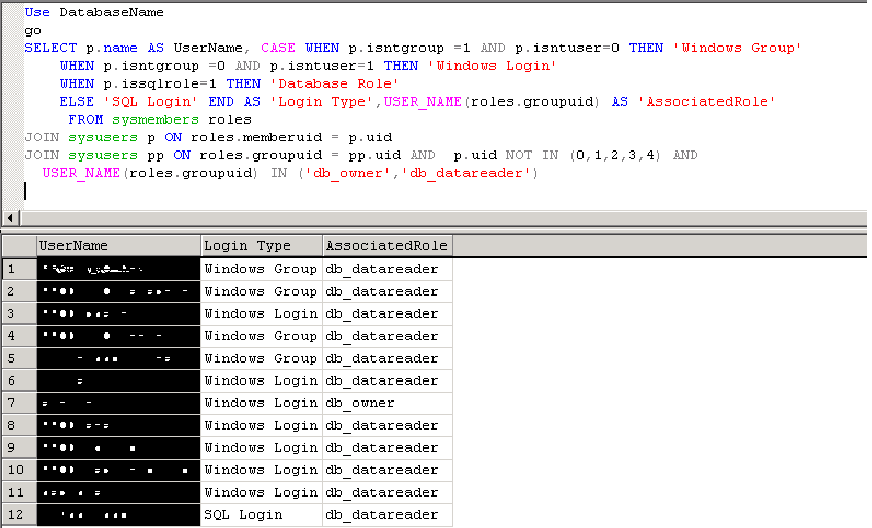
The following screen shot shows the output:
I hope this helps. This post can only be treated as complete once you put your thoughts in the comment section.
You might also want to check the link which includes video to know the Myth around Remote Query Timeout Option
I got a call in the middle of the night about all the logins in SQL Server has been disabled. Logon failed due to trigger execution. The situation is quite scary, isn’t it? Well if you know what to do, then it is not except from the fact that you have to login in odd hours.
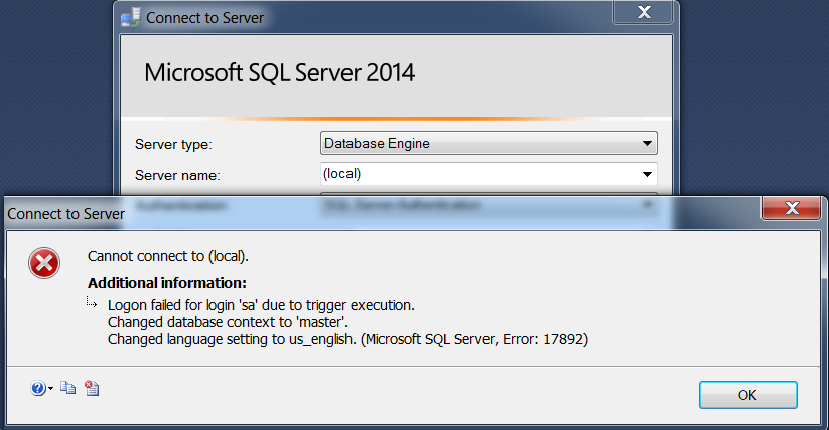
At first try to connect to the SQL Instance to find out the error:
The error message says “Logon failed for Login ‘sa’ due to trigger execution”. The second and third line of the error is little misleading.
It indicates that there must be a server level trigger someone has created due to which all the logins got disabled. The solution would be, find out the problem trigger and disable it. But you need to find out a way to get in to SQL Instance first.
You guessed it right! You need to use DAC (Dedicated Admin Connection) to connect in this situation. If you have not read the article where I have explained different ways to enable and connect using DAC click the following link.
Here I am going to show using command prompt. In the video link given at the end of the article, I have demonstrated using SSMS.
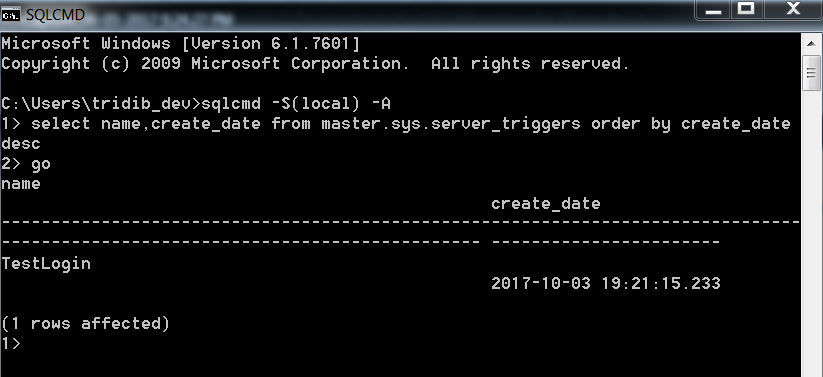
Open command prompt and use DAC to connect to the instance. In the below screen shot I am connecting to default instance using windows authentication and then run the below query:
SELECT name, create_date FROM MASTER.sys.server_triggers ORDER BY create_date DESC
As shown in the above example the trigger name is “TestLogin” and if you have observed I have used order by create_date desc, this is because after the latest trigger creation, nobody is able to login.
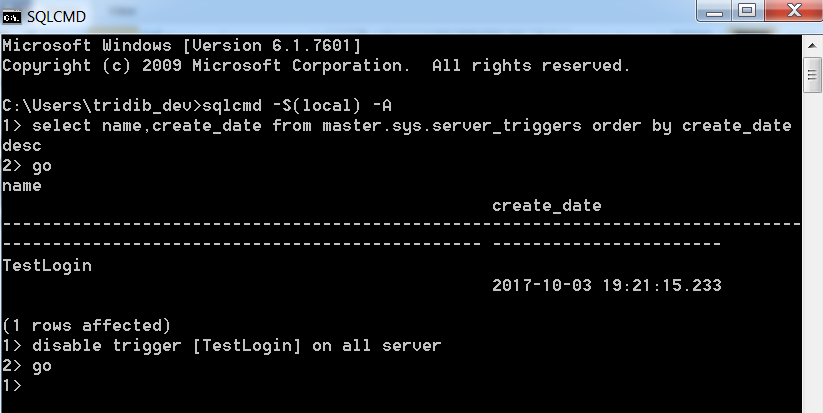
Now you can disable the trigger using the below query:
disable TRIGGER [TestLogin] ON ALL server
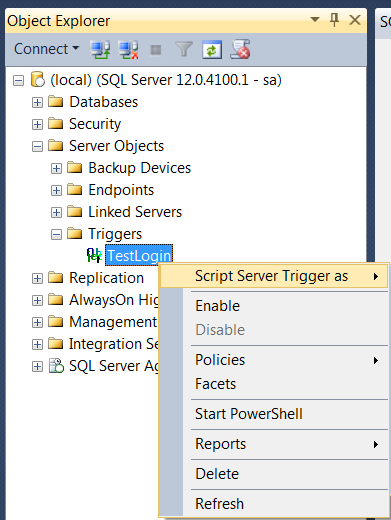
Once the trigger is disabled you will be able to connect to your SQL Instance. You can script out the trigger to check and rectify it.
If you can play sound, go ahead and watch the demo to fix the issue using SSMS:
I hope this helps. I would love to hear from you about any other similar issue or if you have any questions.
Have you ever thought how Dedicated Administrator Connection (DAC) allow you to connect to SQL Server even when it cannot accept standard connection requests?
DAC is a special type of diagnostic connection, introduced by Microsoft as a new feature in SQL Server 2005.
SQL Server reserves a minimum amount of memory and a private scheduler using which it allows you to connect in situations when you need it.
You need to use a login which is a member of the SQL Server sysadmin role to use DAC and for obvious reasons only one such session is allowed at any point of time.
By default DAC is enabled locally except in SQL Express edition. That means if you are able to RDP to the server and want to use DAC to connect to the local SQL Instance, you will be able to do so even when DAC is not enabled explicitly.
Go ahead and watch this video showing what I am talking about:
In SQL Express you need to add “-T7806” to the startup parameters and restart SQL Services. Also SQL Browser Service should be running.
Then why Microsoft has provided the option to enable DAC? In situations OS can be completely exhausted of resources to handle any further user connections which prevents using DAC locally.
That is why you have the configuration settings “remote admin connections” to allow DAC from a remote machine.
There are two ways to enable DAC:
Using Query
GUI (Management Studio)
1. Using Query to set the configuration settings:
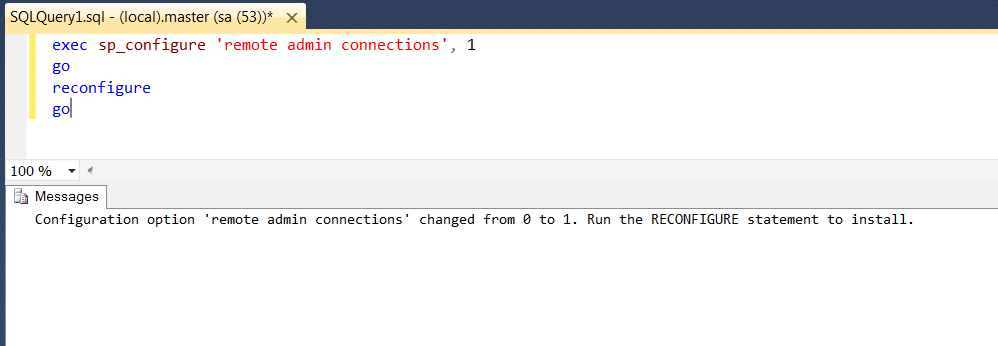
EXEC sp_configure 'remote admin connections', 1
GO
RECONFIGURE
GO
The message says “Run the RECONFIGURE statement to install”. This is little misleading as we have run that already. No need to run it again.
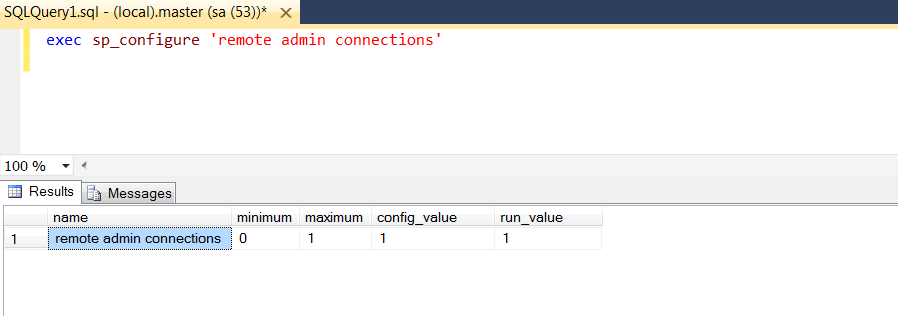
You can verify by executing the following query:
EXEC sp_configure 'remote admin connections'
As you can see in the above screen shot, both config_value and run_value has been set to 1. Otherwise run_value would have been ‘0’.
2. Using Management Studio:
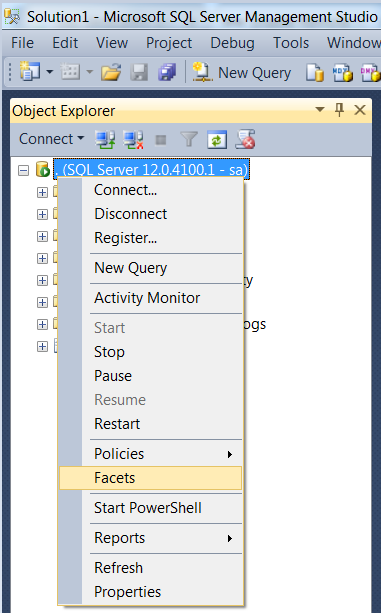
Right Click on SQL Server Instance > Facets as shown below.
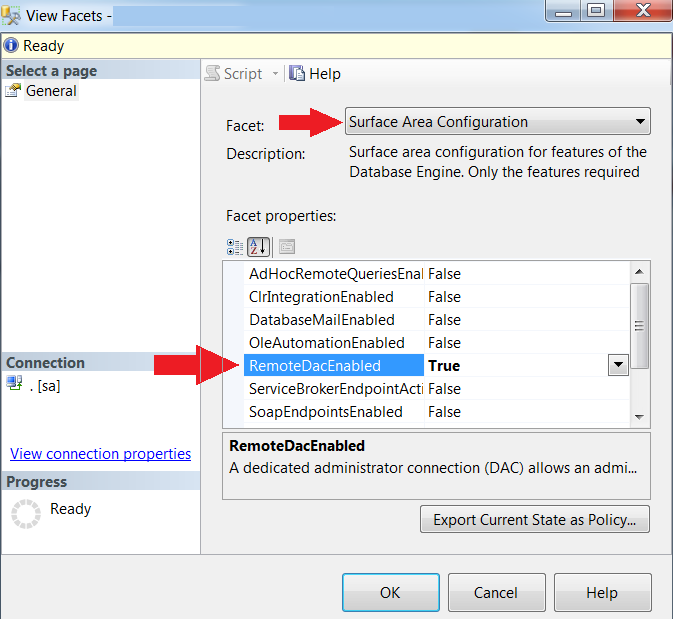
Choose Surface Area Configuration and make “RemoteDacEnabled” to True.
Now your SQL Instance is ready to allow DAC from remote machine.
There are two ways you can connect to SQL Instance using DAC:
Command Prompt
GUI (SQL Server Management Studio)
1. Command prompt:
Commands to connect using DAC:
a. To use SQL Authentication sqlcmd -S [ServerName] -U [ltloginname] -P [Password] –A
b. To use Windows Authentication which will use the login id you are connected with: sqlcmd –S [ServerName] -A
Examples:
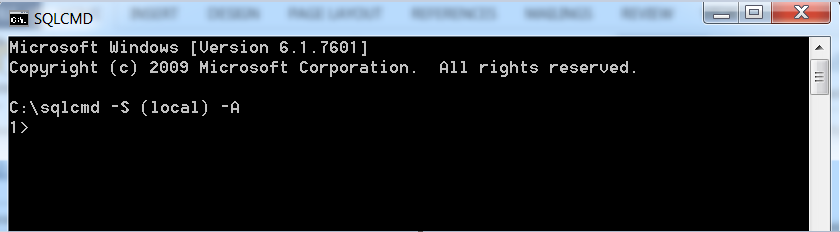
To connect to default SQL instance using windows authentication: sqlcmd -S (local) –A
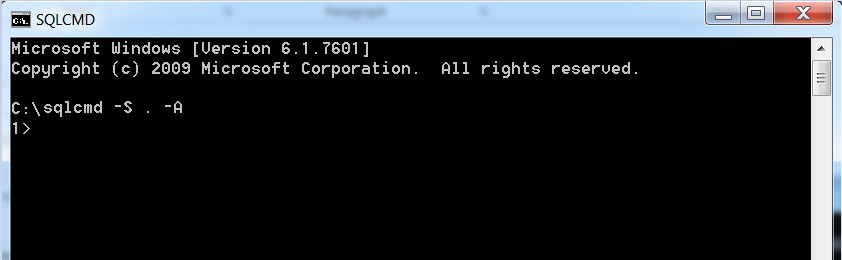
Or you can just use a (.) dot:
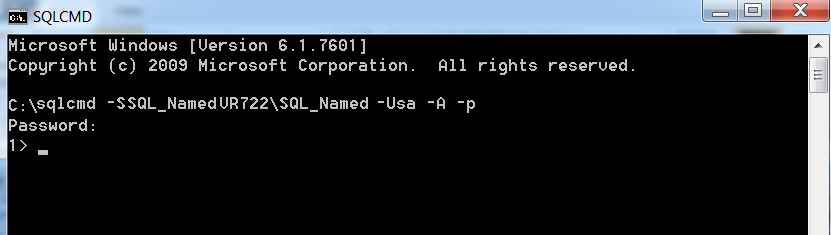
To connect named instance using SQL Authentication:
Note: In the above example the last letter is in lower case (-p), to prompt for password. If you want to mention the password in the command line itself then if is upper case (-P).
2. GUI (SQL Server Management Studio):
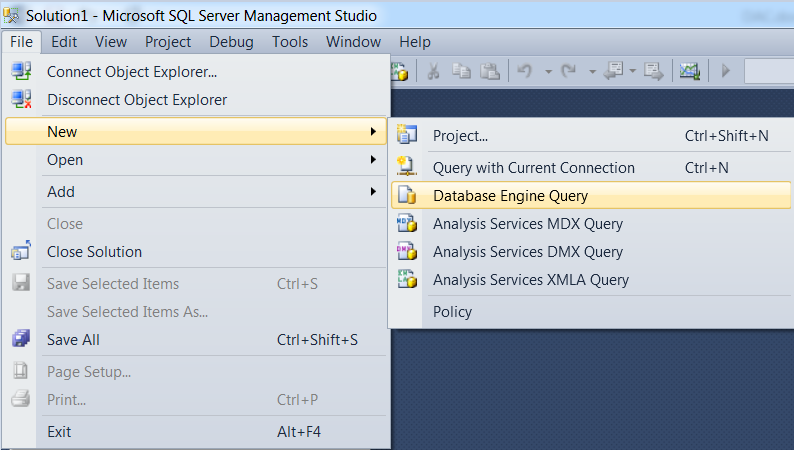
Go to File > New > Database Engine Query as shown below
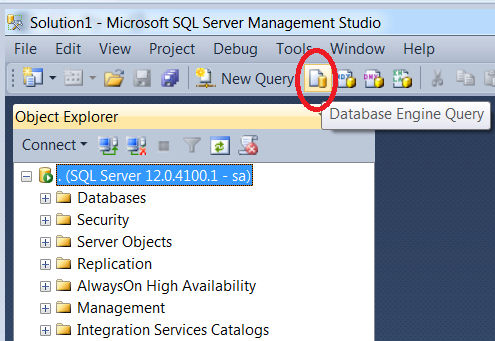
Alternatively you can click on the icon as shown below:
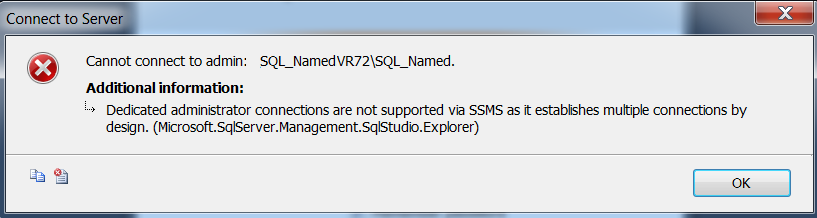
This is important to use Database Engine Query, otherwise you will get error as explained later in this article.
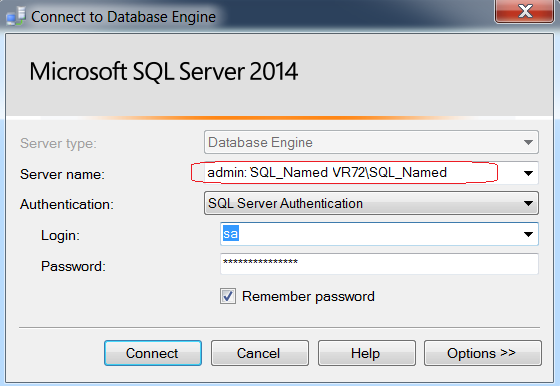
Type Admin:SQLInstanceName for the Server Name field name as shown below:
You can use either SQL Authentication or Windows Authentication.
If you do not pay attention to use “Database Engine Query” you will get the below error message:
In this article you have learned what DAC is and how it allows the special connection, different ways to enable DAC and different ways to connect.
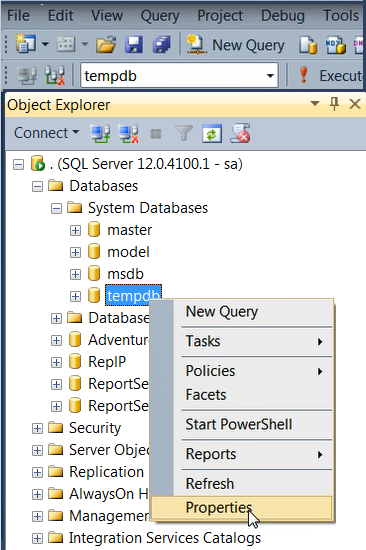
You may want to delete that extra Tempdb data file which someone created by mistake or to accommodate a query. Whatever may be the reason, today I am going to show you how to do it and what issues you may face.
You can run the below query to remove the data file:
ALTER DATABASE tempdb
REMOVE FILE LogicalFileName;
GO
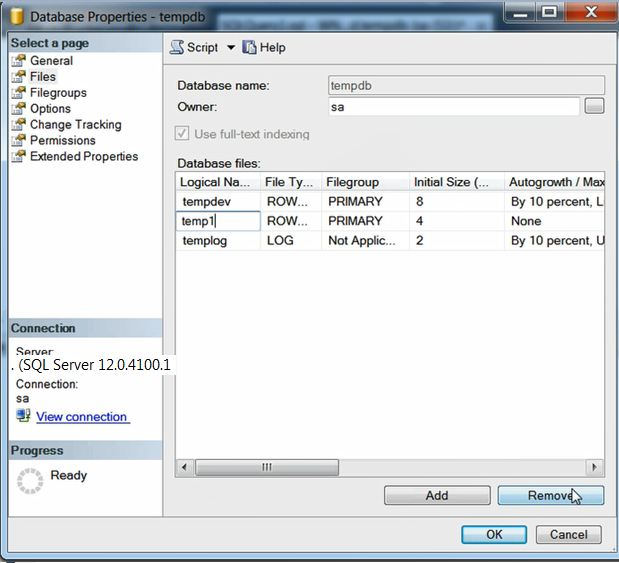
Or you can use GUI:
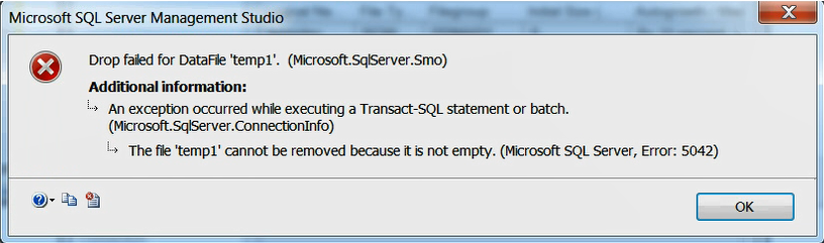
SQL Server throws the following error:
The error message says that it cannot remove the file because it is not empty.
If you just add a file and there is no ongoing activity in the file then it would allow to remove the file this way.
For each file you want to remove, you need to run the following command to empty the file and then run the above query to remove the file:
USE [tempdb];
GO
DBCC SHRINKFILE (LogicalName, EMPTYFILE);
GO
USE [tempdb];
GO
DBCC SHRINKFILE (LogicalName, EMPTYFILE);
GO
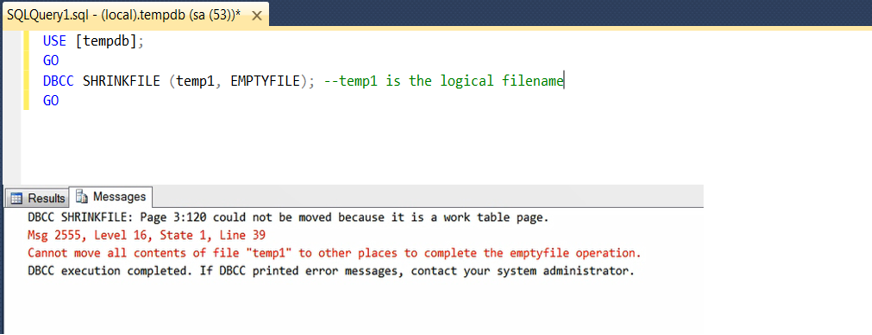
But what if it throws the below error:
The error message is about a work table page which can not be removed. Work table is related to cached information, which indicates that you need to clear the cache.
Execute the below queries one by one and after clearing each, try to empty the file again:
DBCC DROPCLEANBUFFERS
GO
DBCC FREEPROCCACHE
GO
DBCC FREESESSIONCACHE
GO
DBCC FREESYSTEMCACHE ('ALL')
GO
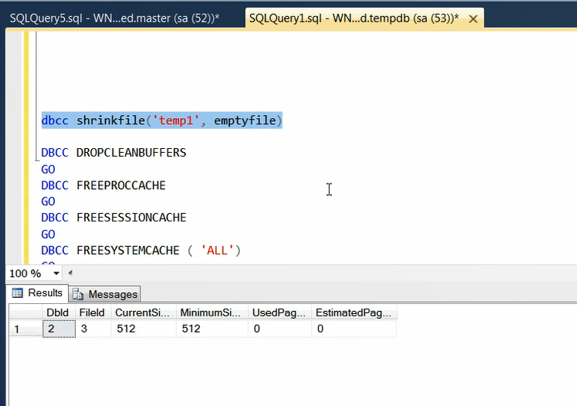
The successful run shows as below:
Please keep in mind that whenever you are clearing cache, it can cause performance issues. I am leaving the decision up to you to handle the risk factor according to the environment.
If your environment allows you to restart SQL Service you can just restart which will empty the tempdb files and you can run the remove command:
ALTER DATABASE tempdb
REMOVE FILE LogincalName;
GO
I have seen whenever customer complains about Query Time Out issue, there is a tendency to play around with this settings. This does not work the way you might think it does.
Use the remote query timeout option to specify how long, in seconds, a remote operation can take before Microsoft SQL Server times out. The default is 600, which allows a 10-minute wait. This value applies to an outgoing connection initiated by the Database Engine as a remote query. This value has no effect on queries received by the Database Engine.
It clearly says, this applies to only outgoing connection and does not have any effect on incoming queries. The misunderstood part here is, what is outgoing and what is incoming query for SQL Server. This should get clarified once you read through this article.
Here is my LAB setup for the Demo:
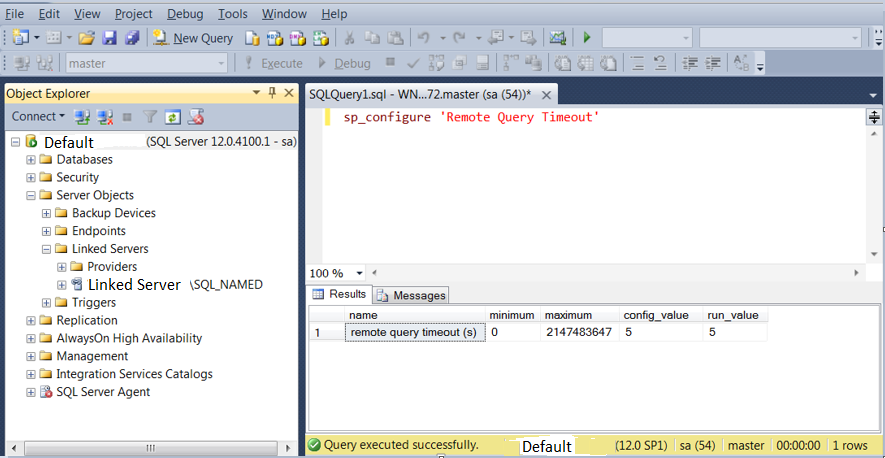
As you can see in the above screen shot, I have set the remote query timeout setting for the default instance to 5 sec(s).
You can execute the below query to set ‘Remote Query Timeout’ settings:
sp_configure 'Remote Query Timeout', 5
GO
RECONFIGURE
GO
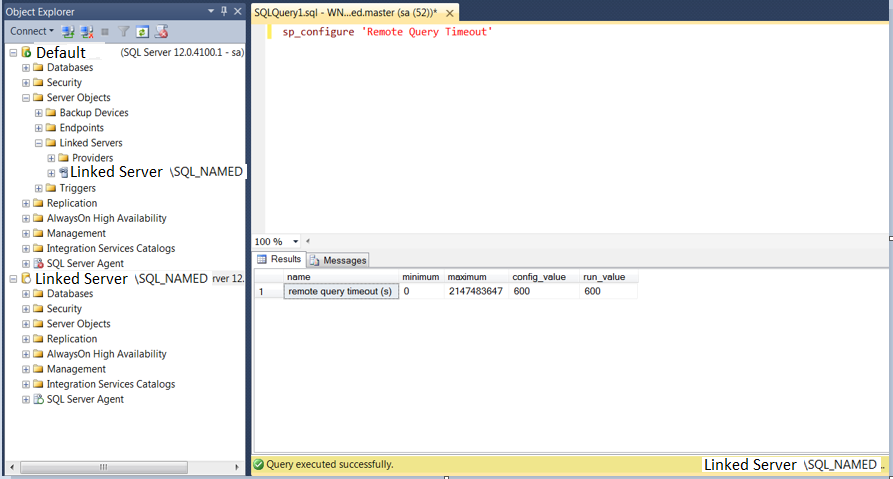
Kept the default settings for the Linked Server SQL Instance (SQL_Named). i.e. 600 Sec(s)
Now if I run a remote query to linked server that would be an outgoing query for the default instance and incoming for Linked Server.
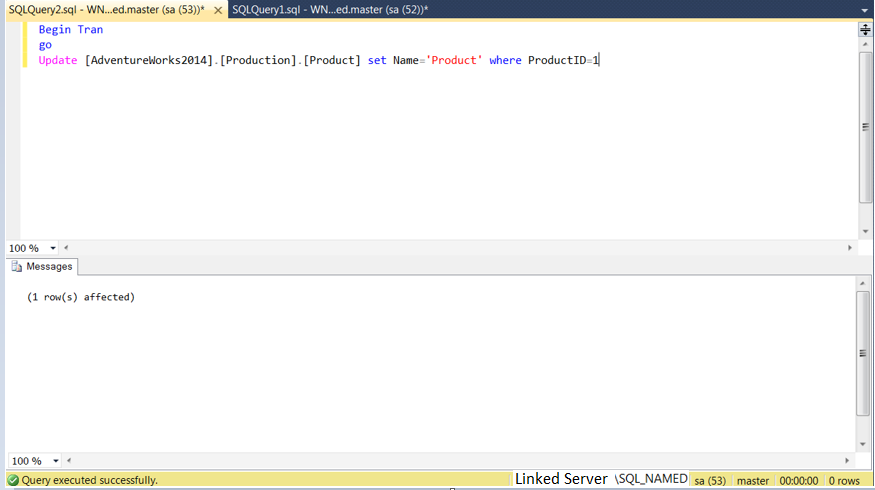
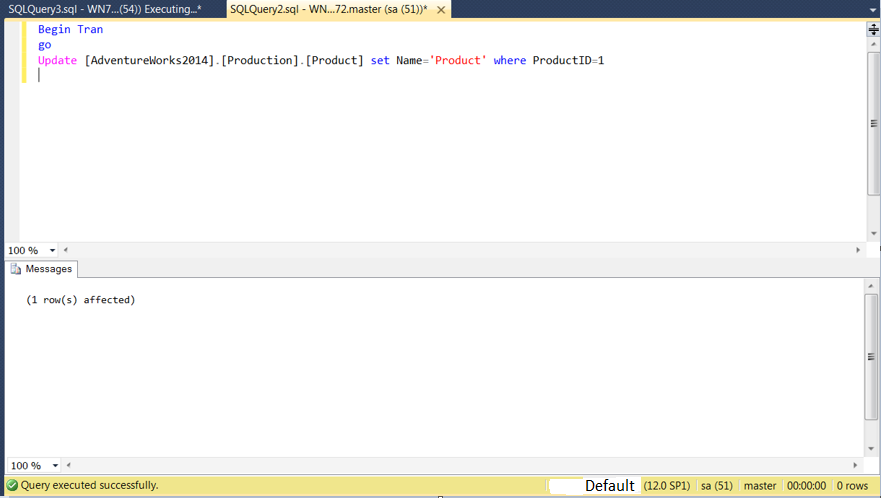
In Linked server I am keeping an open transaction so that the lock on the table [AdventureWorks2014].[Production].[Product] does not get released.
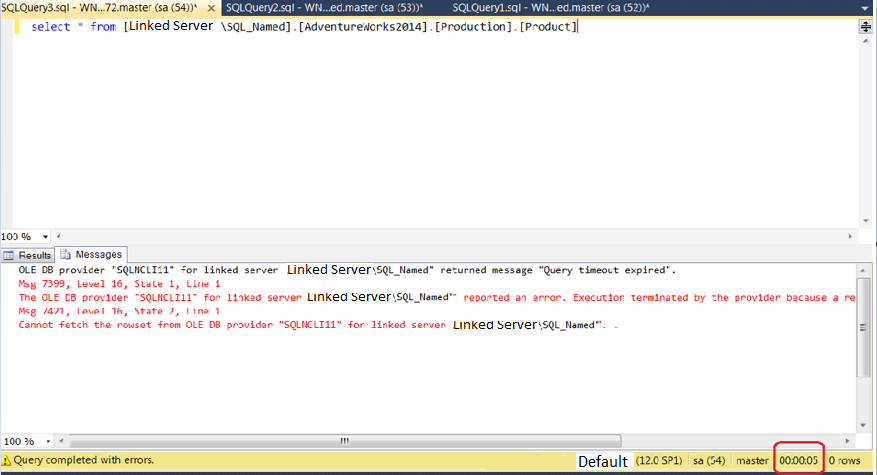
Initiate a remote query from the default instance (Outgoing Query).
If you can see that the query got timed out exactly after 5 sec(s). So, it proves that the remote query time out settings applies for remote query (i.e. for outgoing query).
Now lets see how it works for incoming query. Keep and open transaction on the same table. This time executing it in the default instance.
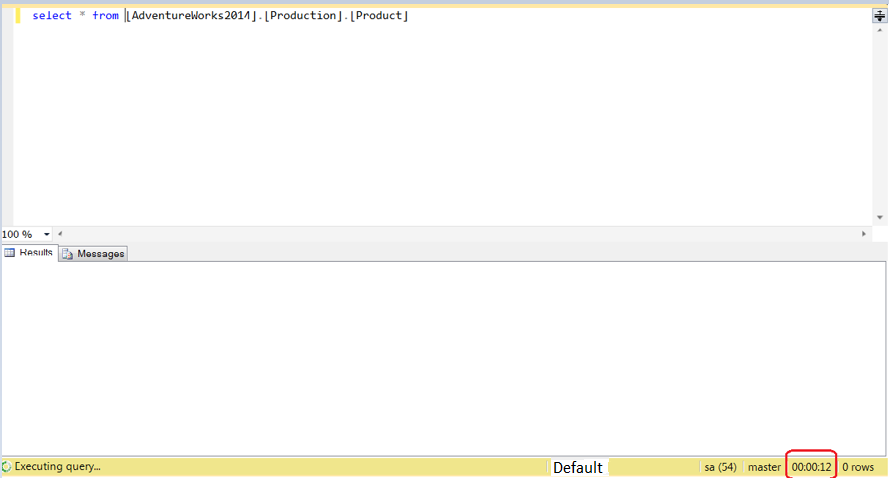
Open a different session for the default instance and run select on the same table. Both the queries are incoming for the default instance.
This time query is still waiting even though it crossed 12 sec(s) without getting timed out. This was an incoming query for the database engine of default instance and hence Remote Query Timeout Settings (which is set to 5 sec(s)) did not apply.
I hope this clarifies how exactly “Remote Query Timeout” option works.
More over if you like video training check the demo here:
You may also like to spend couple of minutes to check the below articles: