Hello, this article is going to be part2 of How To Fix: XTP Configuration Is Invalid where we have learnt about the SCOM alert, what is XTP in SQL Server and how to fix the same in stand alone SQL Instance.
Here we’ll learn about the steps to fix XTP Configuration is invalid error in Always On SQL Instance. Hence I would like you to first go through the first article.
Steps to Fix Configuration Is Invalid Error In Always On
- Calculate Resource Pool Memory
- Create a resource pool
- Bind the database to the pool
- Bring the database offline and then online
- Confirm the Binding
Now you may be thinking, well these are exactly the same steps for stand alone SQL Instance. Yes, you’re right, however in case of Always On you need to perform few extra steps for the point no. 4.
I have already explained how to calculate resource pool memory in the first article Link. Here I’ll start from point no.2
2. Create a resource pool
In case of Always On you have to create the resource pool in all the replicas.
Execute the below query on each replica.
 CREATE RESOURCE POOL PoolName  --Provide the pool name maintaining Organization's naming convention
  WITH
   (
     MIN_MEMORY_PERCENT = 63,  --Adjust as needed/calculated
     MAX_MEMORY_PERCENT = 63   --Often set to the same value as MIN_MEMORY_PERCENT for Predictability
   )
 GO
 ALTER RESOURCE GOVERNOR RECONFIGURE;
e.g. 
3. Bind the database to the pool:
Execute the below query on all the Replicas
EXEC sys.sp_xtp_bind_db_resource_pool YourDatabaseName, 'PoolName';
e.g.
4. Bring the database offline and then online:
This is a bit tricky in case of Always On setup. You need to remove the db from Availability Group before you can take the db offline.
Following are the steps:
- Remove the database from Availability Group
- Take the database Offline and then Online on Primary Replica
- Readd the database back to Availability Group
- Failover the Availability Group to each of the replicas and Failback to the original Primary Replica.
5. Confirm the Binding:
This also needs to be executed on all the Replicas
SELECT d.database_id, d.name, d.resource_pool_id
FROM sys.databases d WHERE name='SQLGeeksPro' --Change database name
GO
Example Result Set:
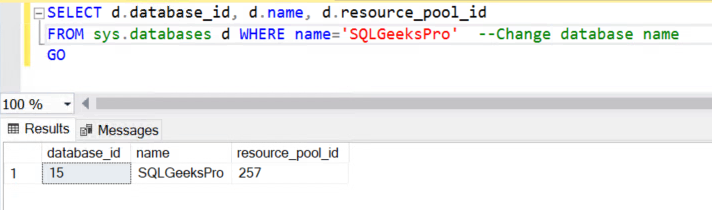
As you can observe there is an associated resource_pool_id for the example database “SQLGeeksPro”.
Hope this helps. Please feel free to leave a comment.